
Canva's Magic Layers - The New Feature That Will Change How You Edit AI Images
Have you spotted the new feature in Canva yet? Honestly, this is something I have wanted for a long time. There have been so many times when I just wanted to tweak an image - even something as simple as adding a glow effect - and I could not. I always wanted to add that little personal touch. So when I saw Magic Layers for the first time... let's just say I was very happy 😄
I work smart, and I regularly use AI to help me create pins, ad banners, and other visuals. But here is something every AI user knows: AI does not always give you the perfect result. It gives you direction, ideas, and a solid starting point - but the final touch still needs to come from you.
That is exactly where Magic Layers comes in.
What does Magic Layers actually do?
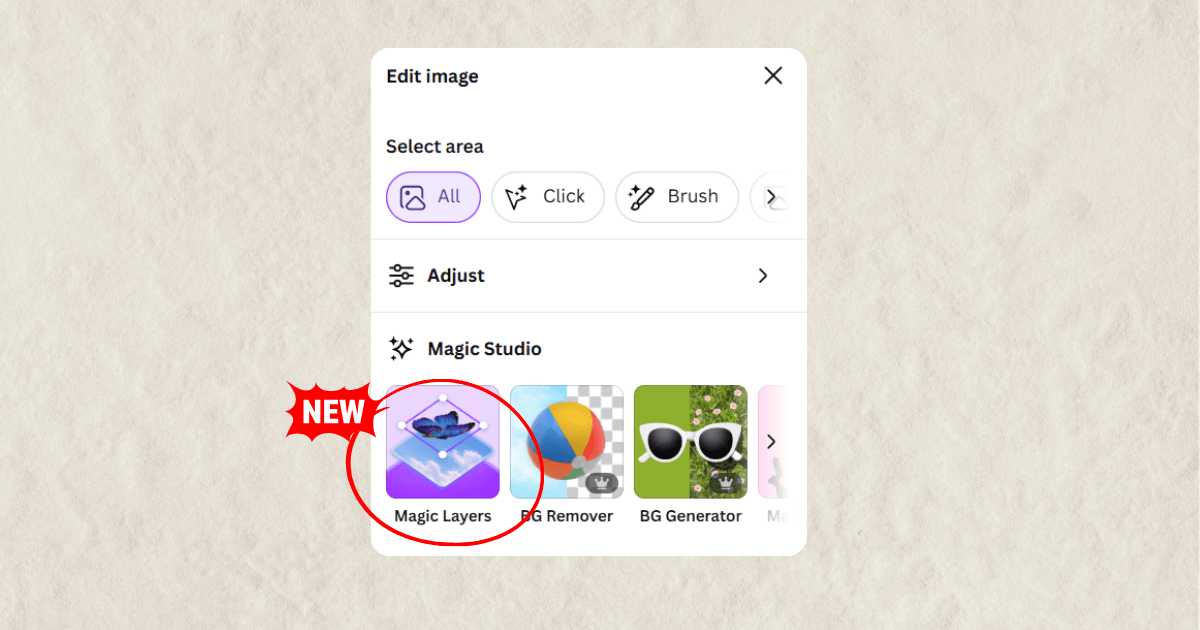
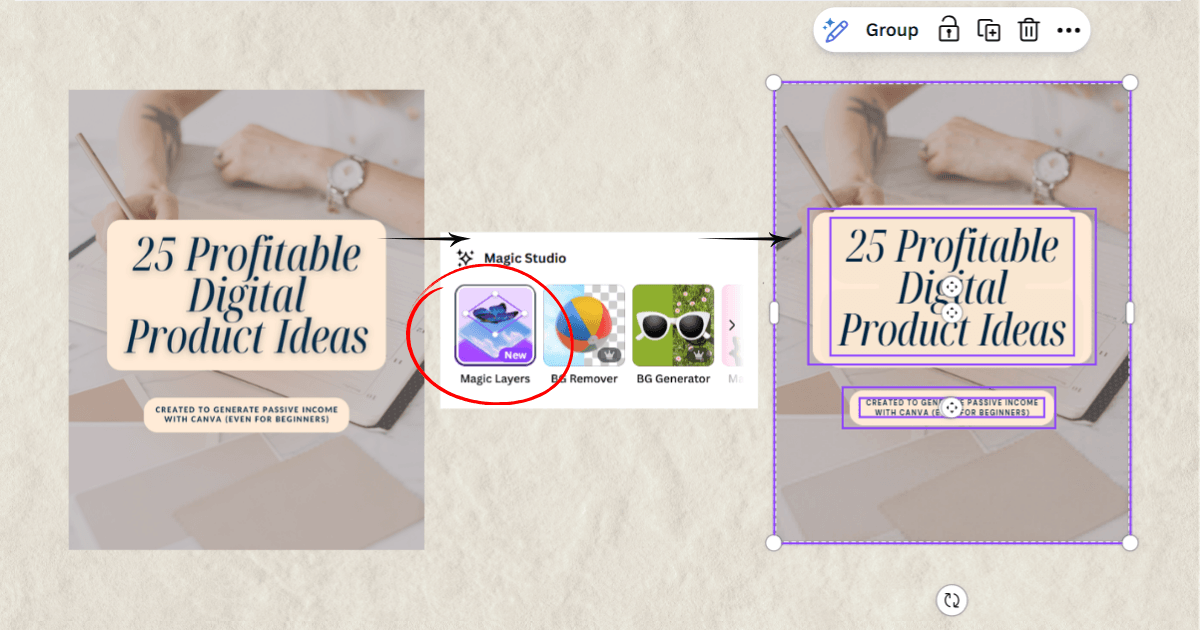
Imagine you have a PNG or JPG design and you want to move or change some of the elements in it. With Magic Layers, you can now separate that image into its individual layers and edit each one separately.
Select your image in Canva, click Edit, scroll down to Magic Studio and choose Magic Layers. Canva will automatically separate the design into individual elements.
But when is this actually useful?
This is the question I asked myself too. After testing it, the answer became very clear.
Has this ever happened to you - you generate an image with AI, and it is close to what you want but not quite right? You do not need to start over with a completely new prompt. You just need a few small adjustments.
That is when I bring the design into Canva and use Magic Layers to separate it into individual elements. From there I can reposition them, resize them, and even change the font on any text.
And here is a bonus - your final visual is no longer created entirely by AI. It has passed through your hands, your creative eye, your personal touch. That makes it yours.
Bookmark this post so you can come back to it when you need it.
And if you are ready to take your designs to the next level, check out my Canva Crash Course - MRR + PLR Resell Rights. I am just getting started with new tutorials and tips stay tuned, there is a lot more coming your way.
We are in this together.
Hristina